
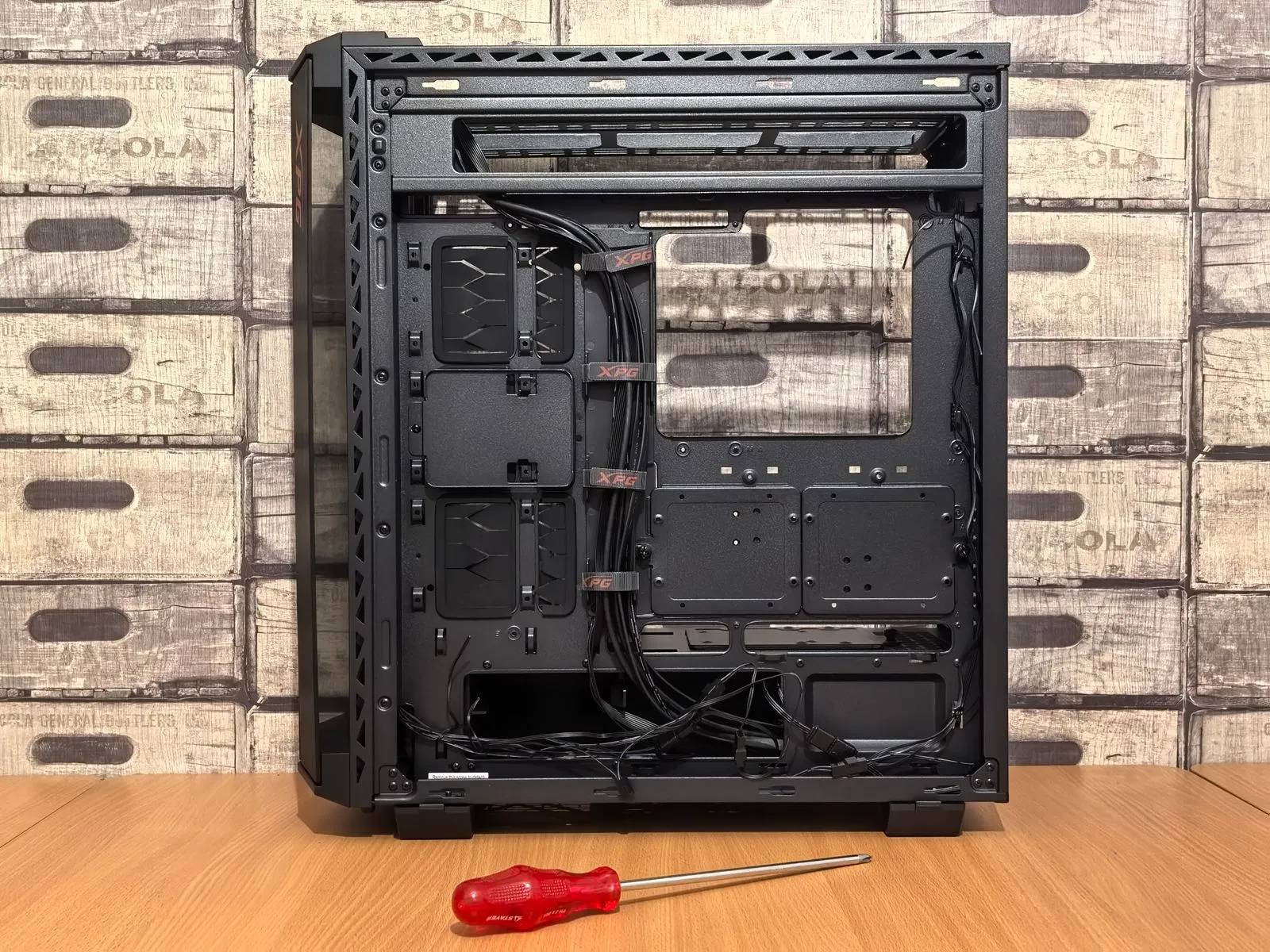
A targeted upgrade can help your gaming PC run more smoothly, handle newer games, or support a higher-resolution monitor. But replacing a part without checking the rest of your system can lead to compatibility problems or disappointing results. Start by identifying what limits your current setup, then confirm that a potential upgrade fits your motherboard, case, power supply, and budget. A little research before you buy can help you spend on the component that addresses the problem you actually have.
Find the Current Bottleneck
Describe what happens when you play: low frame rates, stuttering, long load times, or trouble running games at higher settings. These symptoms point to different possible causes. Use your operating system’s performance tools or a trusted monitoring app while a game is running to check whether the processor, graphics card, memory, or storage is under heavy load.
Look at performance in the games and settings you care about, not just a general benchmark score. A graphics card may limit frame rates at high resolution, while a processor can matter more in strategy games or when aiming for very high frame rates. If no component appears consistently maxed out, check temperatures and background apps before buying new hardware.
Check Compatibility First
Confirm the new part works with your existing system. For a processor, check the motherboard’s socket and supported processor list; a BIOS update may also be needed. For memory, verify the generation, supported capacity, and available slots. For a graphics card, compare its length and thickness with your case’s clearance and check which power connectors it requires.
Do not overlook the power supply. Check its available wattage, connector types, age, and overall condition before installing a more demanding graphics card or processor. Also confirm that the motherboard has the connections you need for storage and other components. When specifications are unclear, consult the manufacturer’s documentation or ask a qualified builder to review the parts together.
Estimate the Likely Gain
Match the expected improvement to your goal. A stronger graphics card can help with higher resolutions, visual settings, and graphics-heavy games, provided the processor and power supply can support it. More memory may help if games and other apps use nearly all of what is installed. Faster storage can reduce some load times, but it usually does not raise in-game frame rates on its own.
Compare reputable tests for the specific games, resolution, and settings you use. Treat results as a guide, since performance varies with the rest of the system. If you play at 1080p and your graphics card already meets your needs, a top-tier card may deliver less noticeable value than fixing stutter, improving cooling, or upgrading a component that is clearly holding the system back.
Prioritize the Right Parts
Start with the problem you measured. If a graphics card is consistently limiting performance, consider that upgrade first—but check power and case fit. If memory use is near capacity and the system slows when several apps are open, adding compatible memory may help. If temperatures rise and performance drops during longer sessions, inspect dust buildup, fan operation, and airflow before replacing major components.
Make a complete parts plan rather than choosing components in isolation. A processor upgrade might require a new motherboard or cooler, and a new graphics card may call for a better power supply. Include those supporting changes in your decision, and back up important files before installing parts. If the upgrade approaches the cost of a new system, compare both options before committing.
A worthwhile gaming PC upgrade begins with a clear performance goal, a measured bottleneck, and a careful compatibility check. Prioritize the part most likely to solve your issue, then account for any supporting changes your system needs. If you want help reviewing a build or upgrade plan, Blue Ridge Builds can help you consider your options.